Product photography workflow
How to make a carousel from product photos
Pasteup arranged these three product photographs into three editable portrait panels. This is an illustrative stock-photo brief, not a customer campaign or brand endorsement.
Use one to six of your own photos. Create, edit, and download free without an account.
Make a product carouselThe three source photos
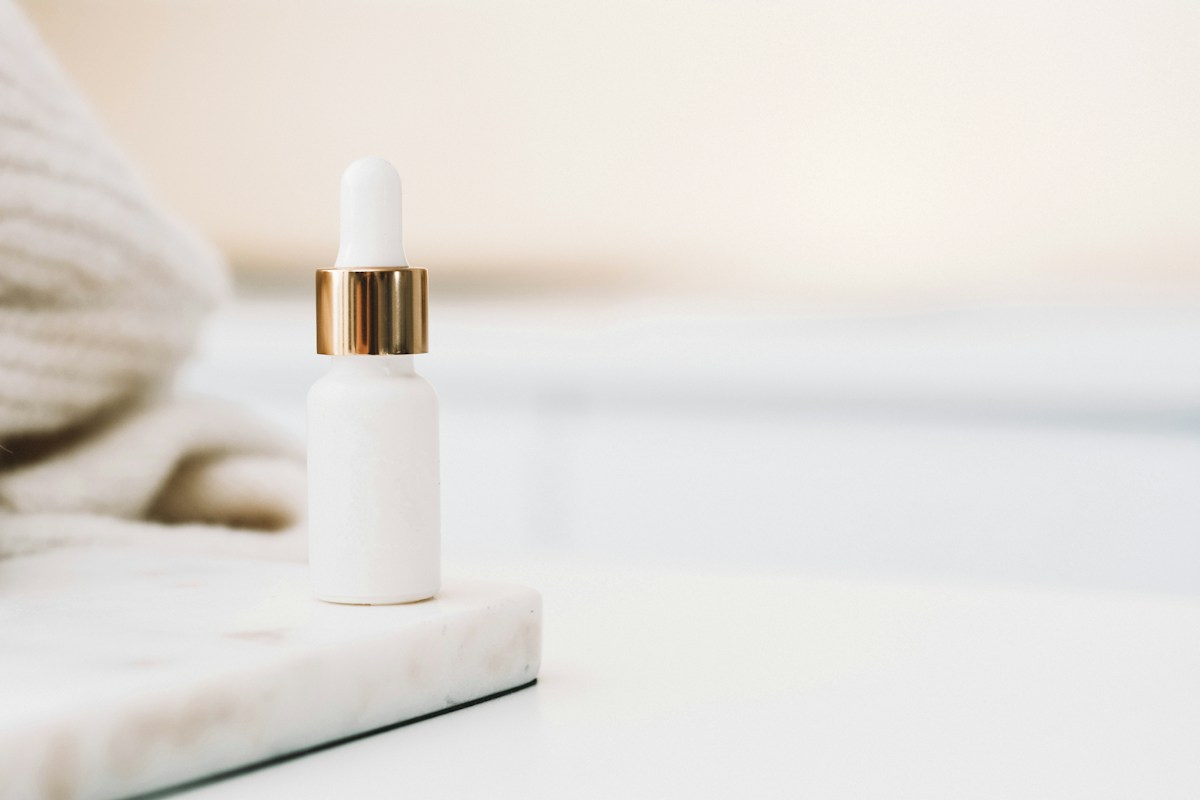
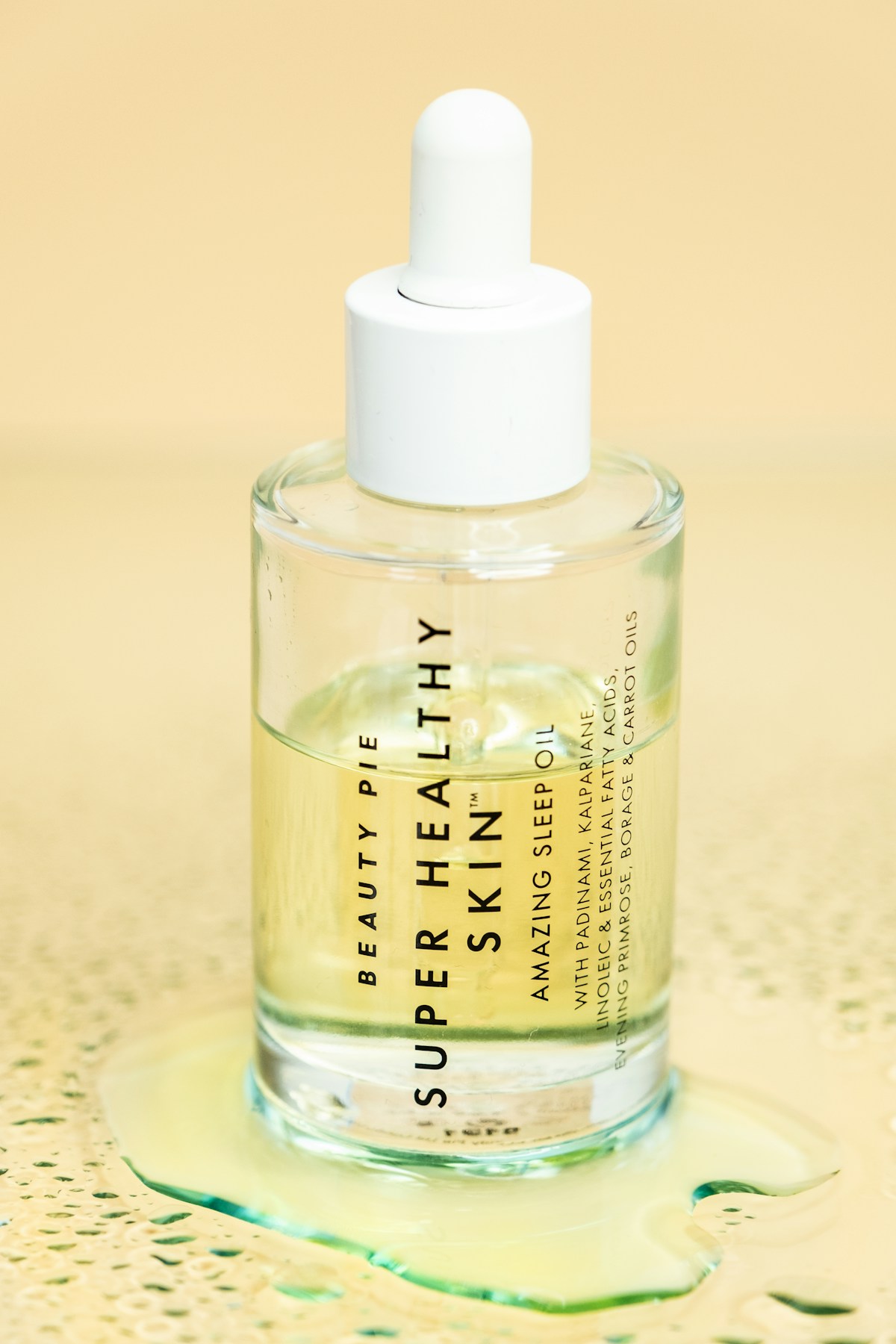
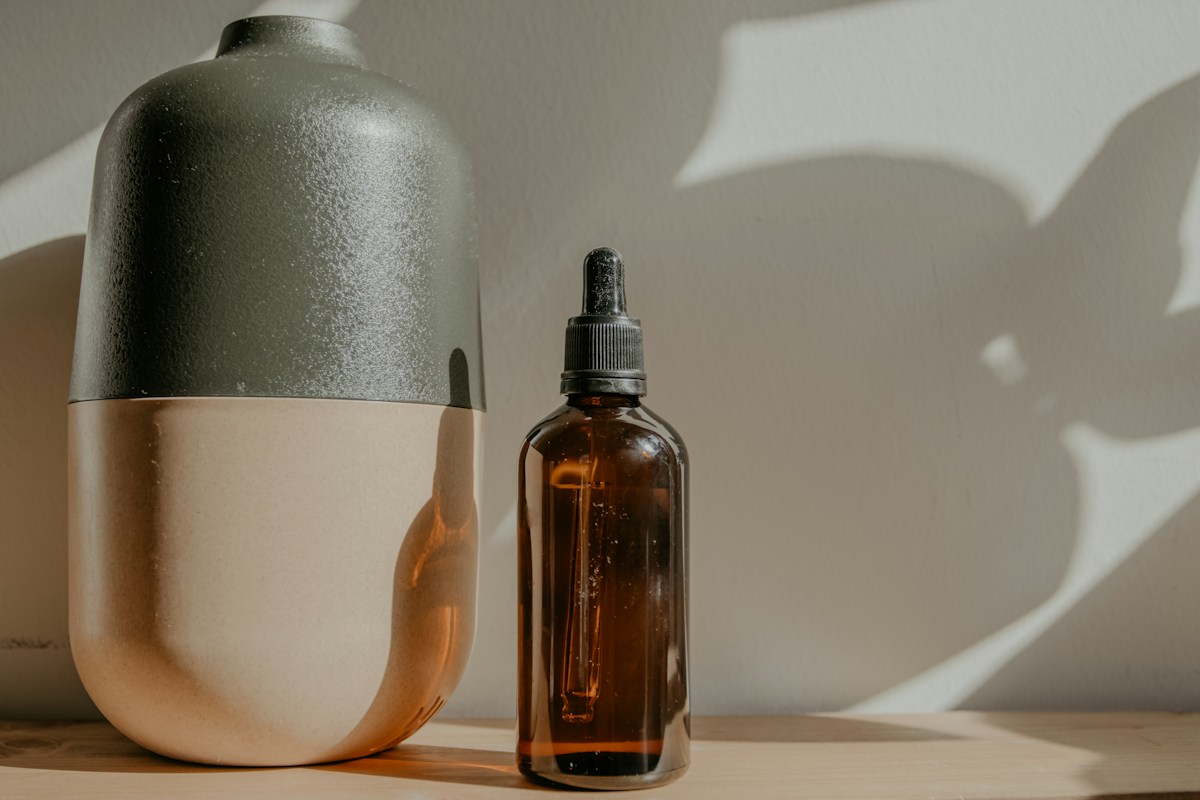
The set pairs a bottle in its surroundings, a close product view, and a quieter studio image. Warm neutral backgrounds connect different subjects without implying that they are the same product.
Used under the Unsplash License. Source and license record.
The actual Pasteup output
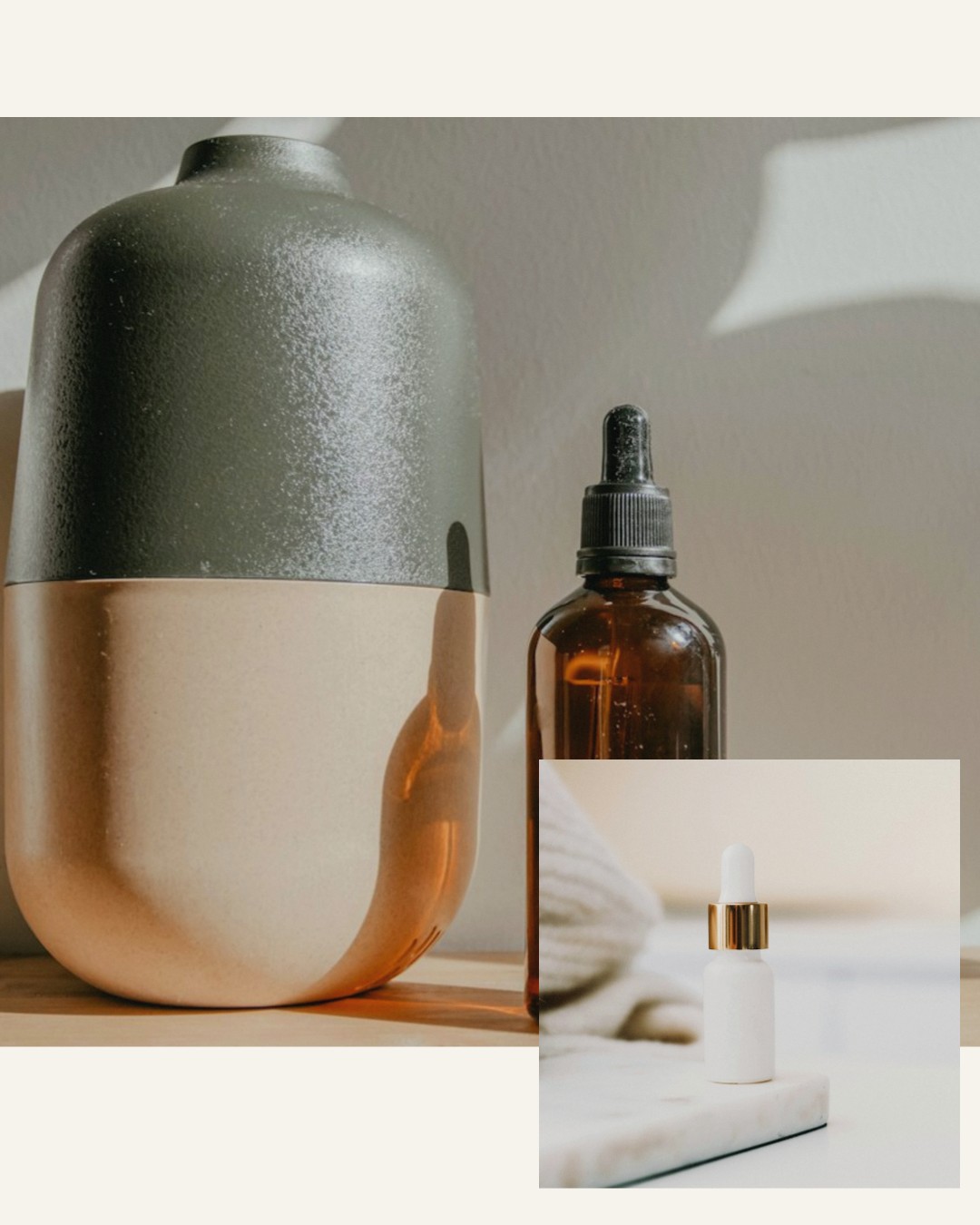
These panels were rendered by Pasteup’s automatic carousel engine from the sources above. They show the generated starting point before manual crop adjustments.
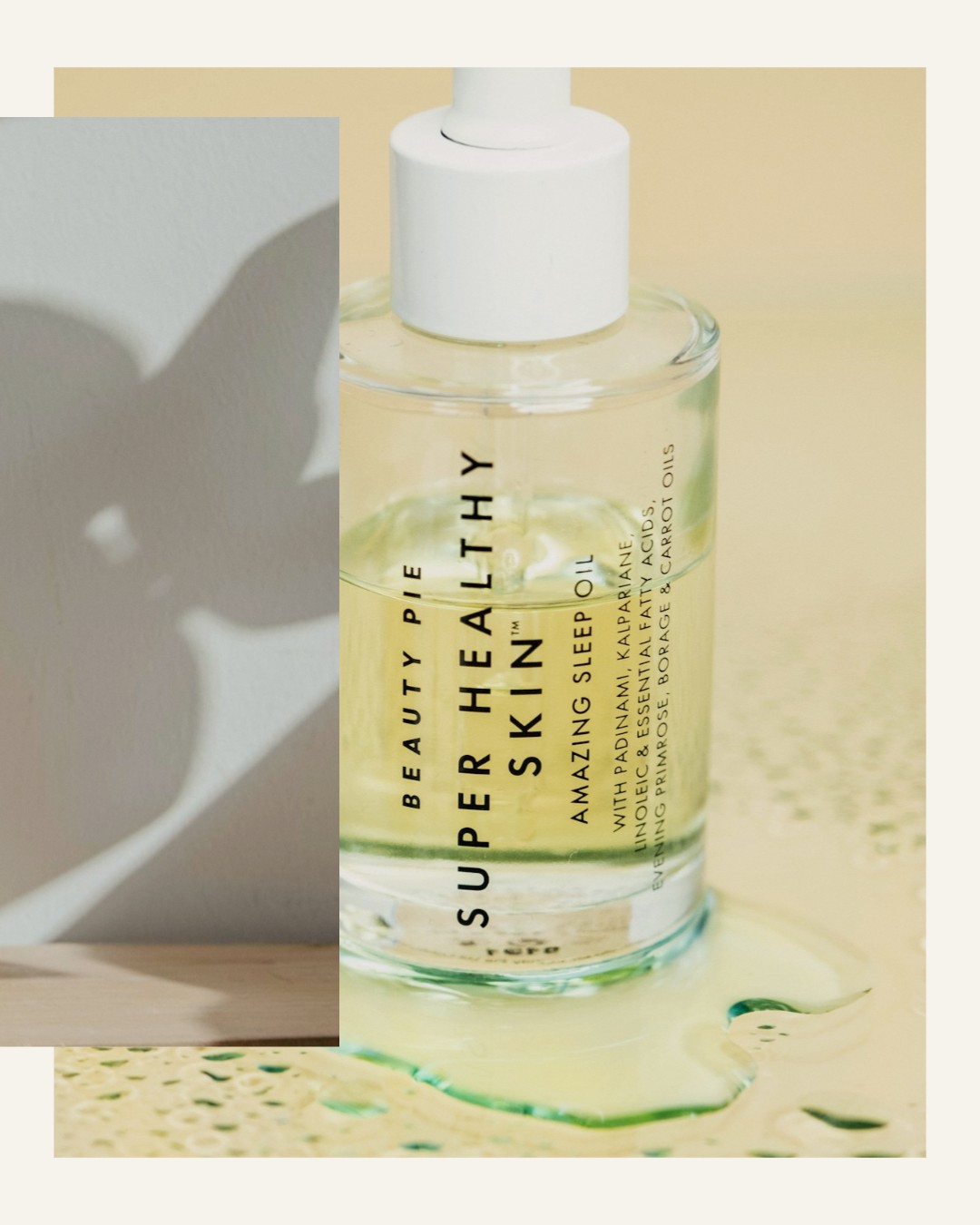
What to keep and what to check
Open with context
The amber bottle and vase establish the setting. A small white-bottle inset previews the closing image. Check that the inset does not hide a label you need to show.
Inspect the first seam
The opening photograph continues into panel two beside the larger clear bottle. Keep important packaging text clear of overlaps and panel boundaries.
Close with a clean view
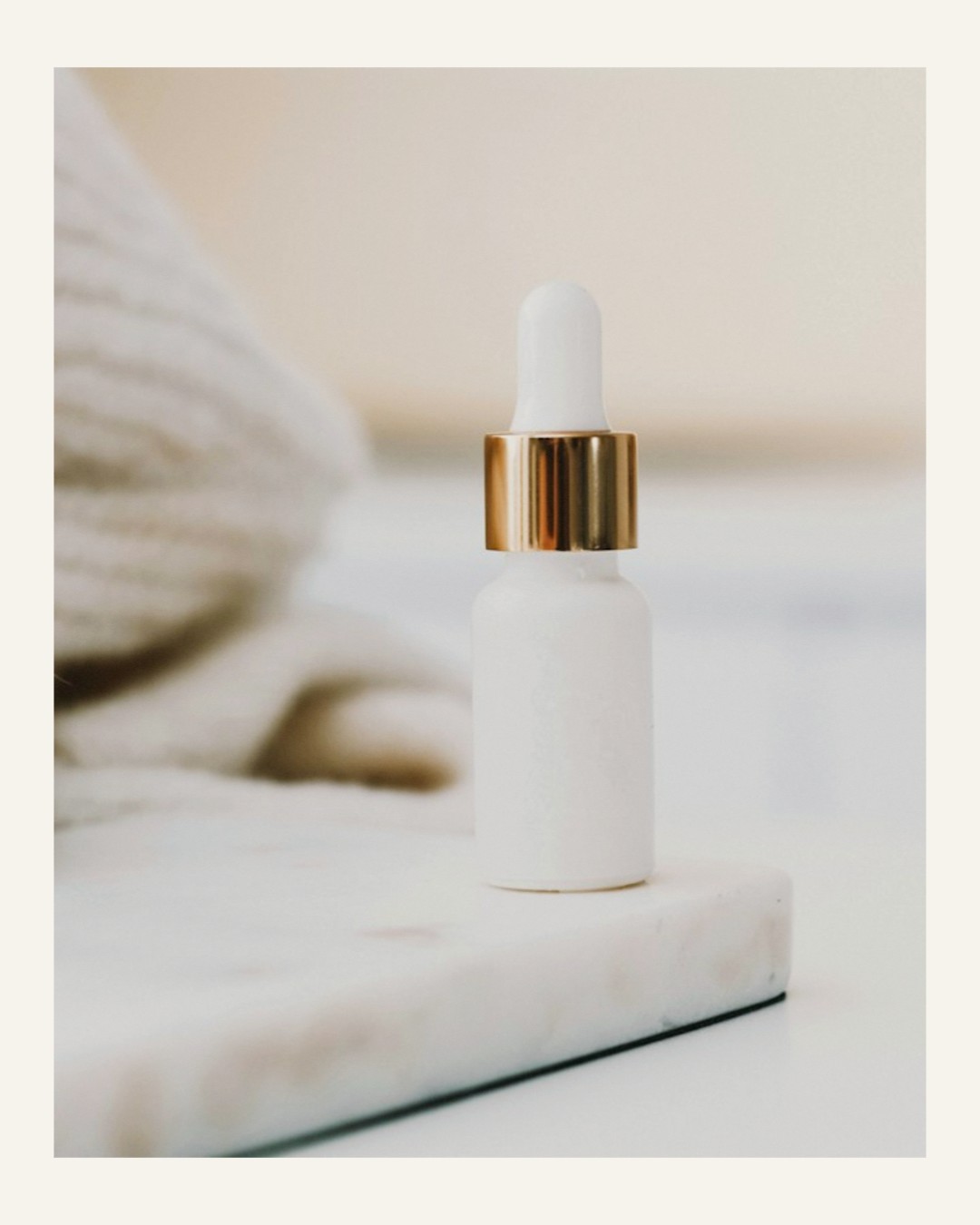
The final panel gives the white bottle its own space. Its simpler background slows the sequence after the busier middle panel.
Make one with your product photos
- Choose a small set.Use the button above to select one to six photos of your product, details, and setting.
- Review the generated layout.Pasteup chooses the arrangement. Every photo remains editable; results vary with the source set.
- Check product accuracy.Move, resize, or crop layers to keep labels readable and the product recognizable. Check each panel separately.
- Save in order.Desktop downloads a ZIP with three numbered 1080×1350 JPEGs. On supported phones, share the prepared photos; individual saves provide a fallback.
Pasteup uses your supplied photos. It does not write captions, generate replacement product photography, or publish to Instagram. Core arrangement and editing run in your browser.
Choose product photos