Overlapping carousel workflow
How to make an overlapping Instagram carousel
We turned six photos into three connected 1080×1350 Instagram posts. The images cross panel boundaries to create one continuous composition while every post still works on its own.
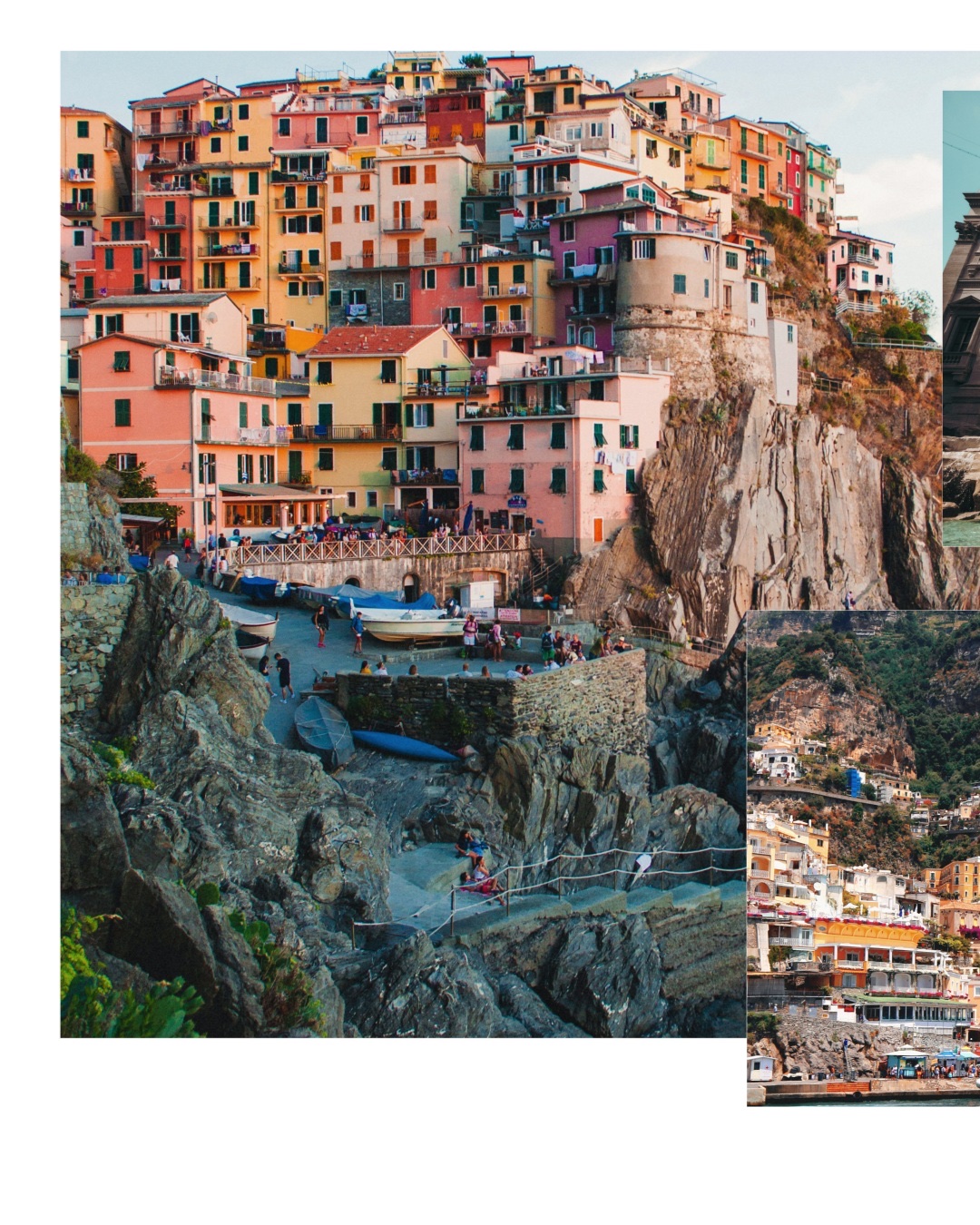
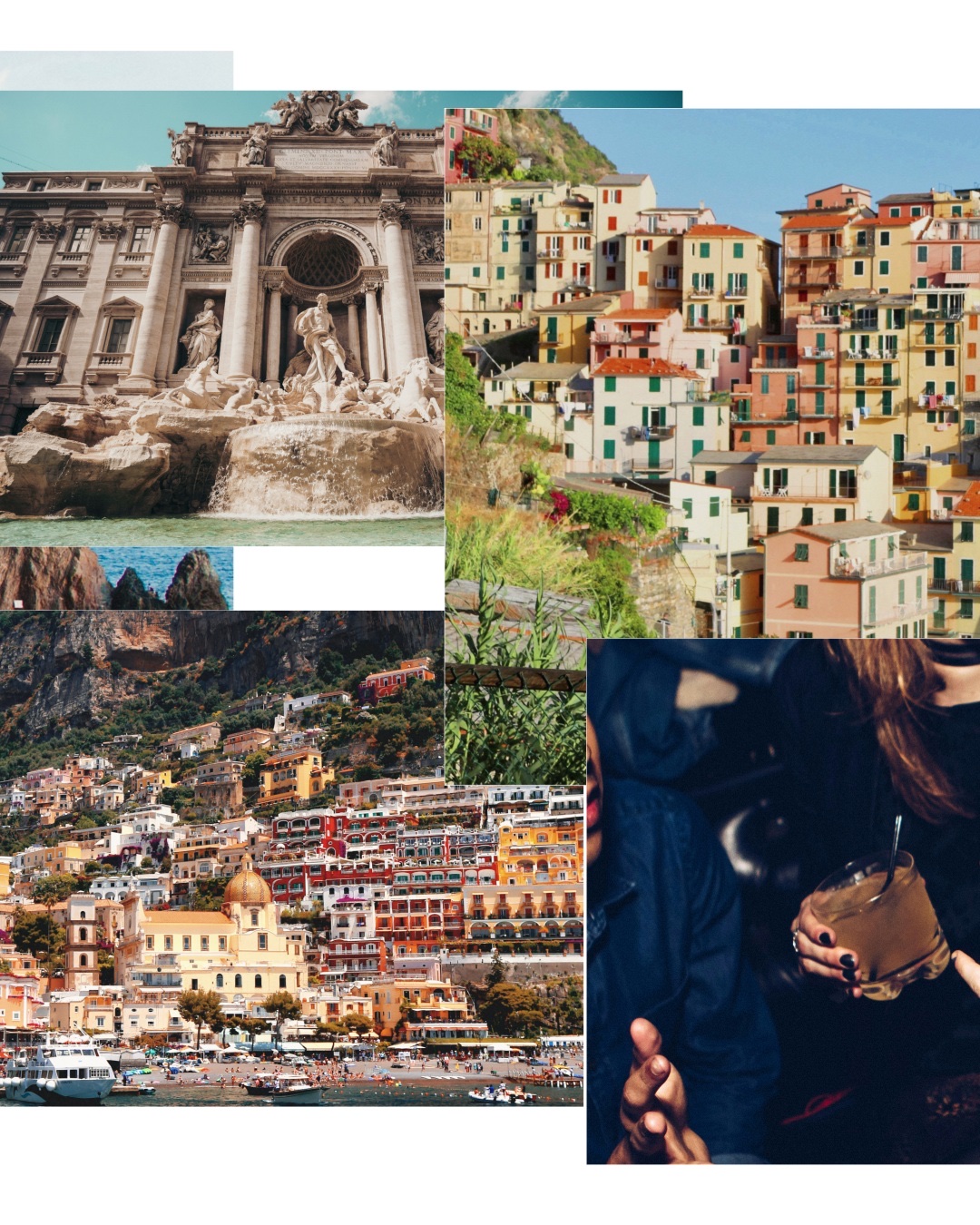
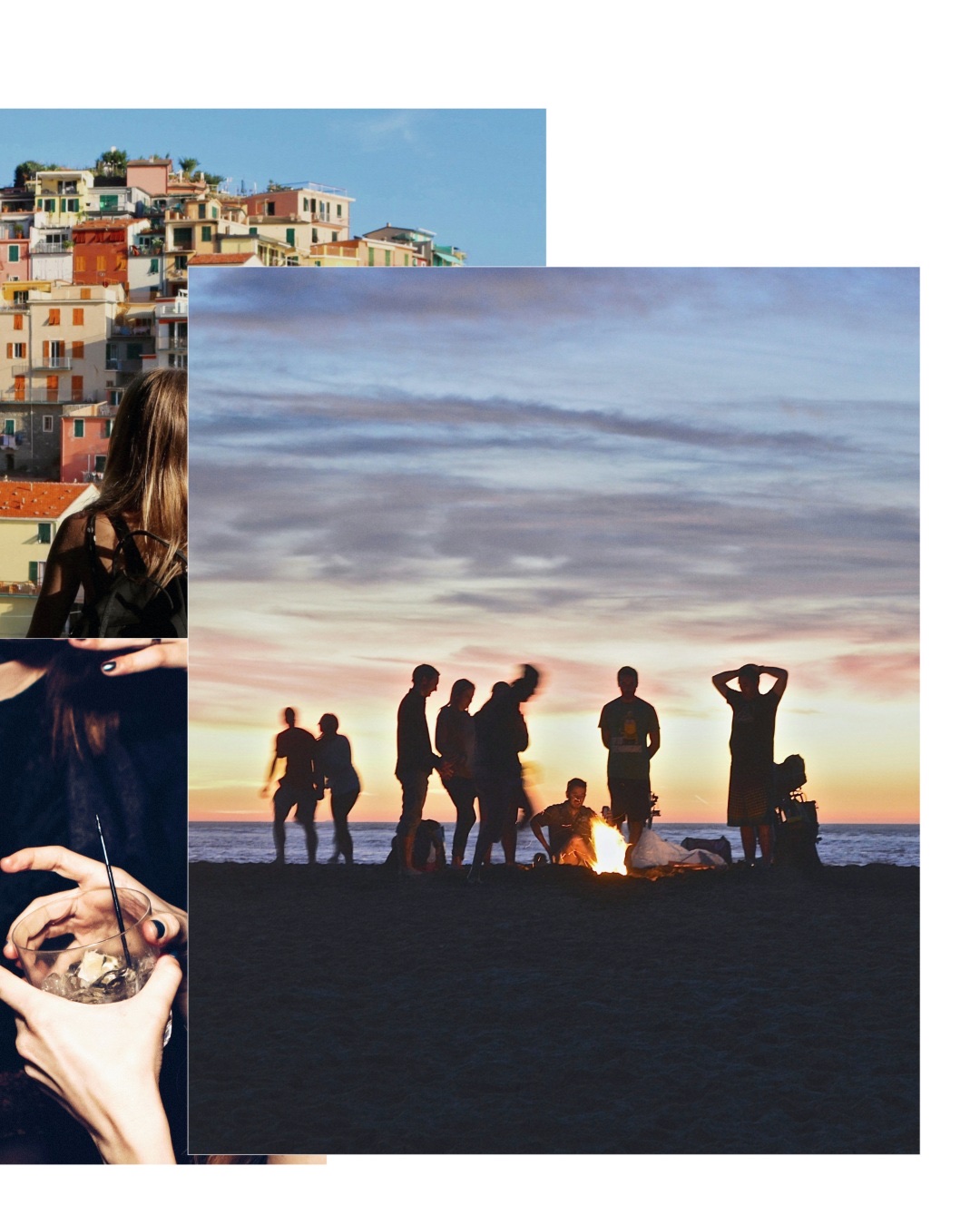
The source set
Choose images with different jobs.
This example mixes wide scenes, vertical landmarks, detail, and people. That variety gives the layout enough visual material to create scale changes and meaningful overlap.

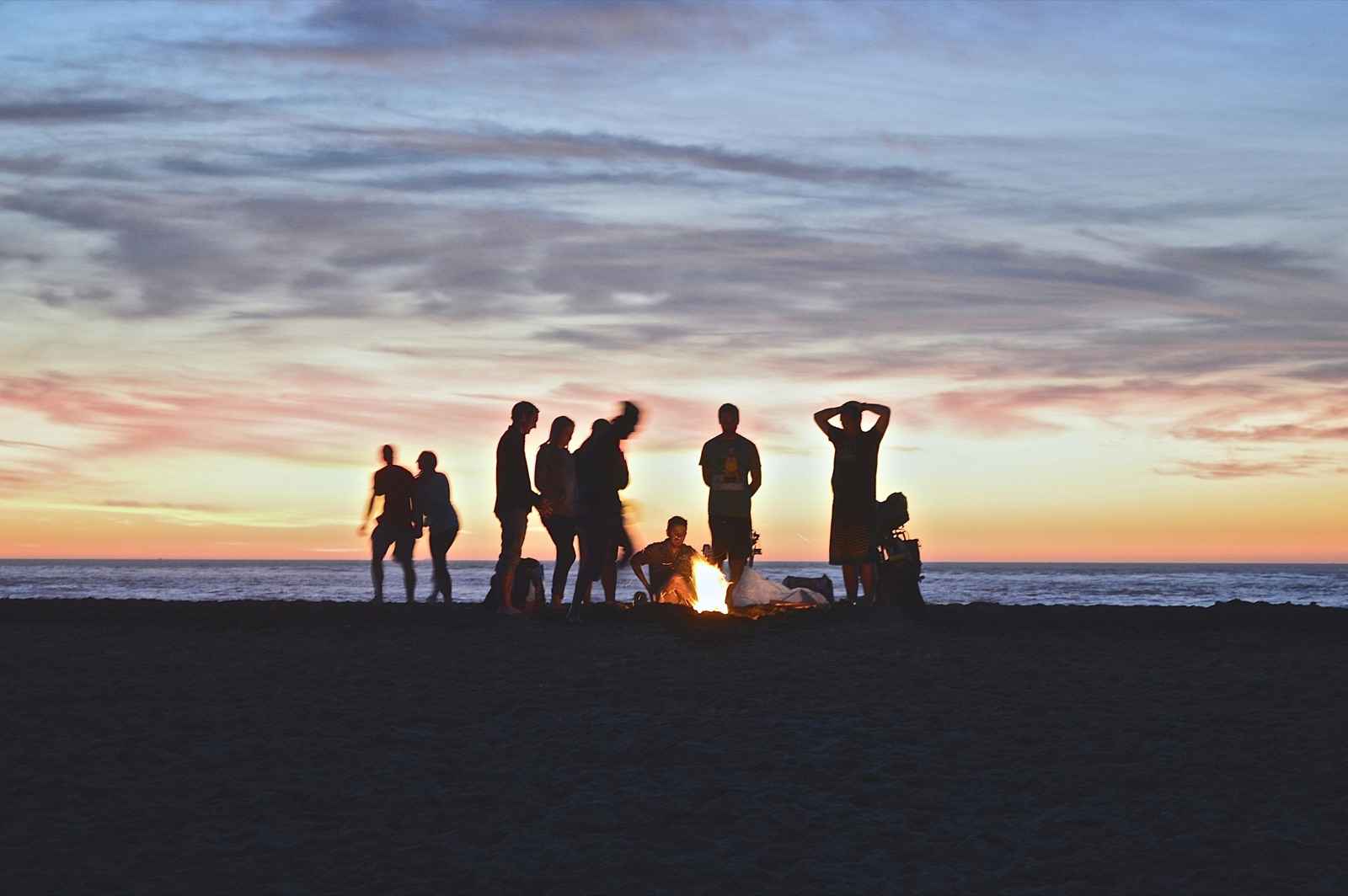
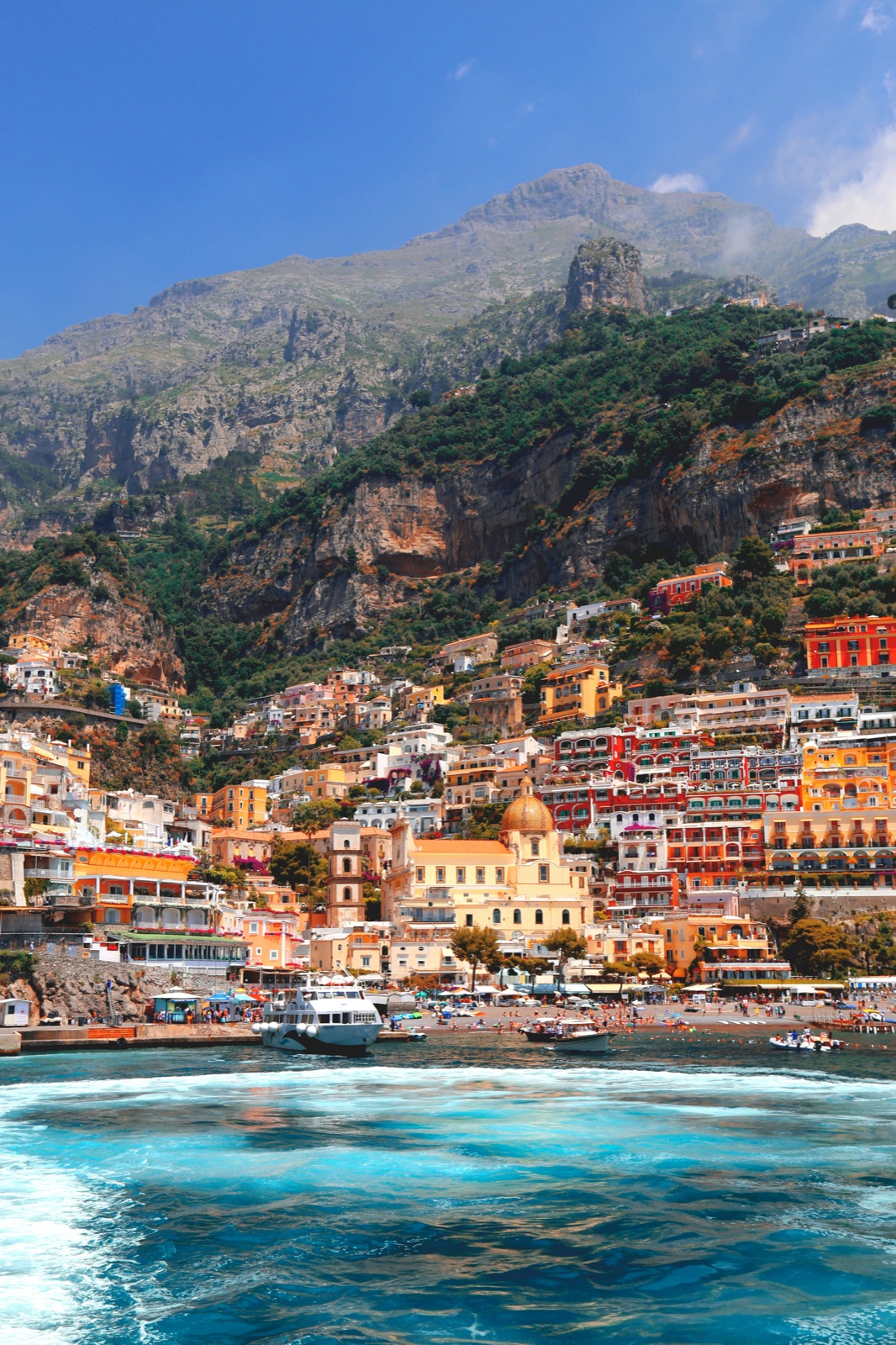
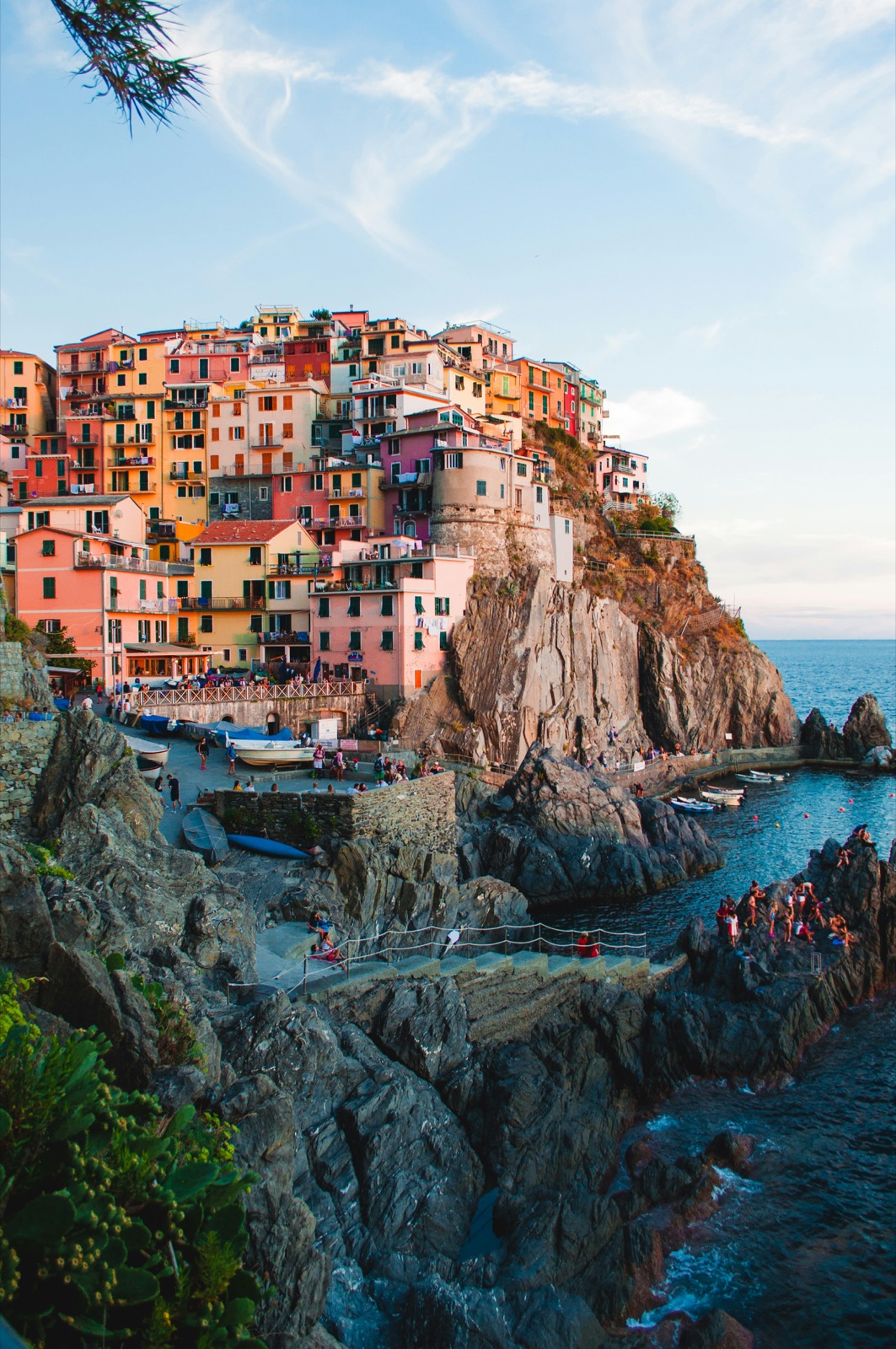
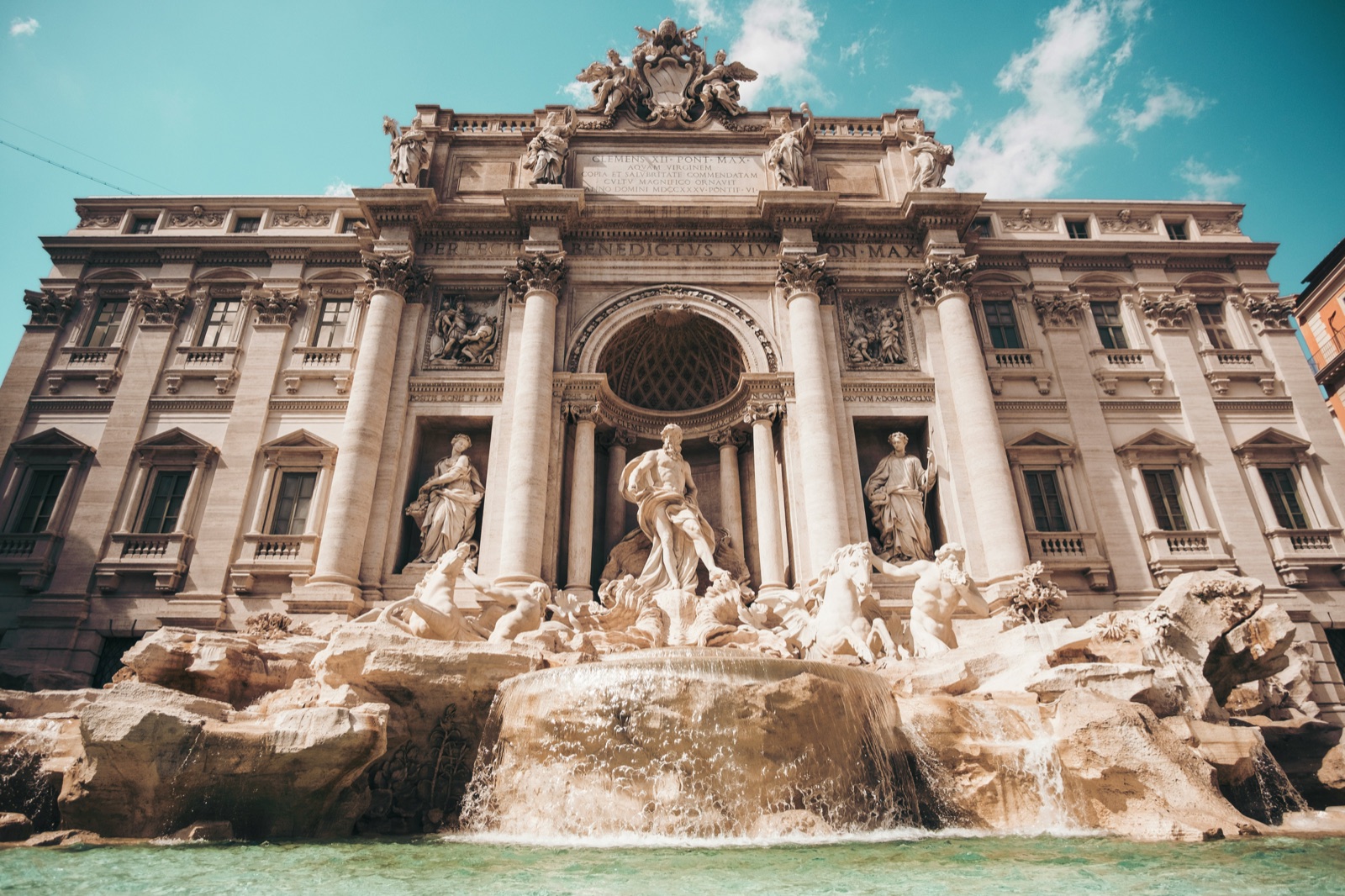
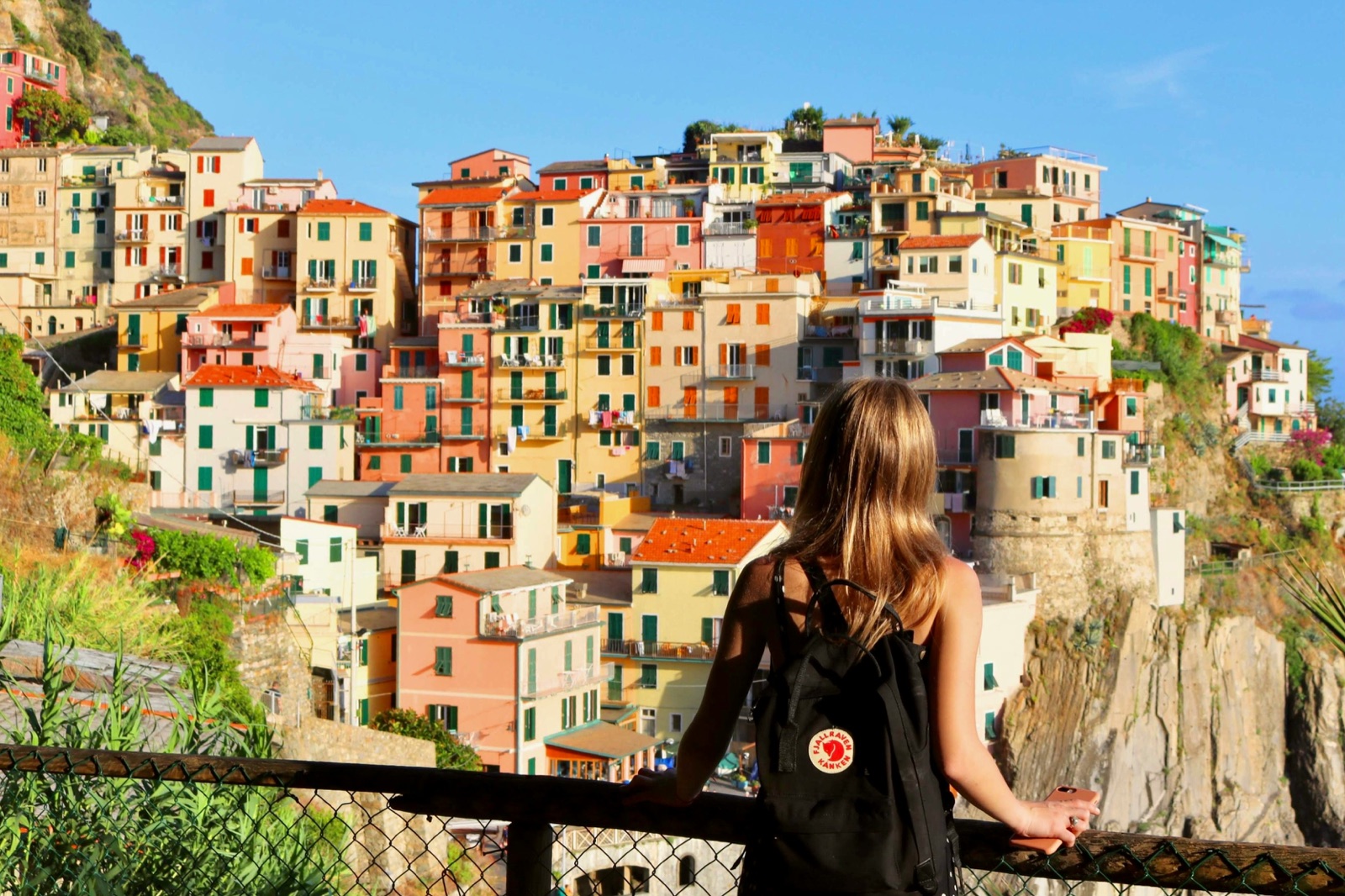
Example photos by Michael Discenza, Kimson Doan, Jordan Steranka, Jack Ward, Cristina Gottardi, and Sofia Alberti via Unsplash.
Overlap decisions
Connect the swipe without hiding the subject.
Start with a strong hero
A large vertical image owns the first panel. A smaller supporting frame crosses the first seam and gives the viewer a reason to swipe.
Use the middle as a bridge
Panel two carries images across both boundaries. Varied frame sizes keep the overlap deliberate instead of turning into a uniform grid.
Finish with a new focal point
The final panel inherits an image from the middle, then resolves on a large closing photograph. Each panel feels distinct within one continuous canvas.
Repeatable workflow
Six photos. One canvas. Three exports.
- Choose Carousel.Pasteup opens one canvas that is three Instagram posts wide.
- Add up to six photos.Mix wide, vertical, detail, and people images to create visual range.
- Generate the composition.The beauty engine chooses hierarchy, crops, and overlaps across the panel guides.
- Check every seam.Use the solid guides to keep faces and key details away from awkward cuts.
- Download panels 1, 2, and 3.Export three exact files and upload them to Instagram in order.
Make an overlapping carousel.
Choose your photos. Pasteup turns them into a connected three-post composition that remains fully editable.